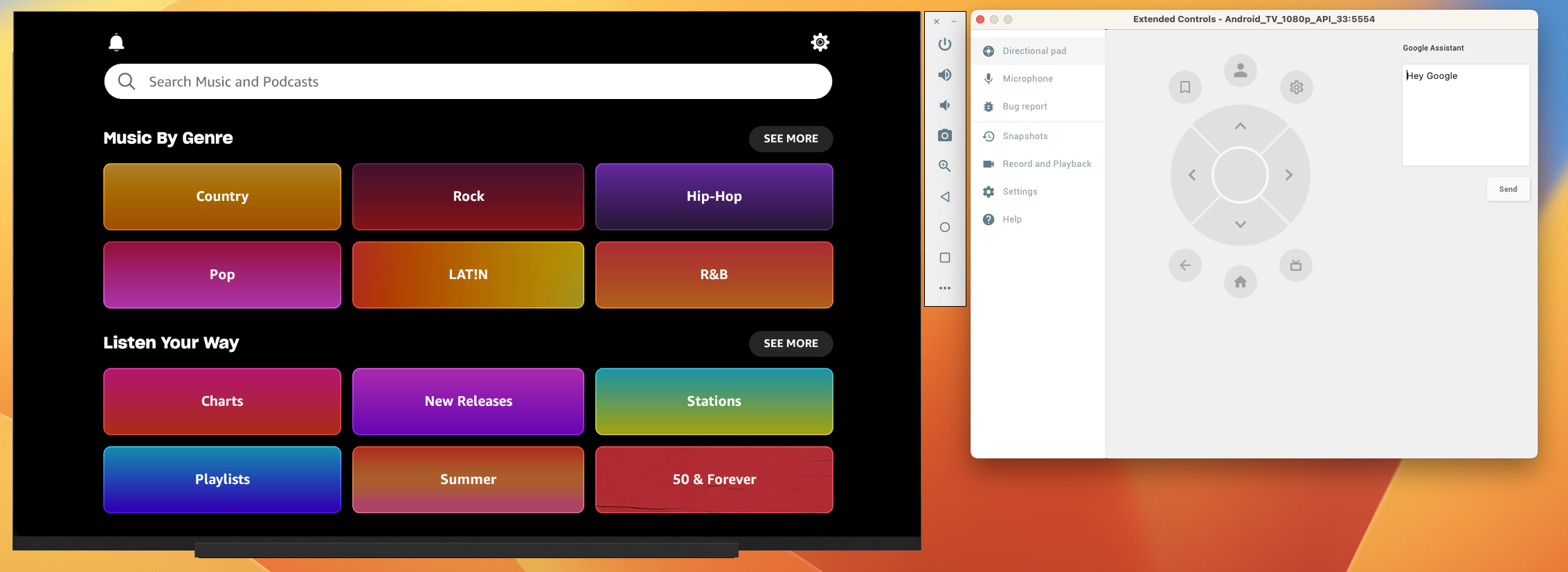


Setting Up For TV Debugging (Greenfield)
Setting Up For TV Debugging (Greenfield)
Purpose
The purpose of this document is to provide instructions on how to set up the Greenfield Dragonfly app to use with the AndroidTV emulator or an actual AndroidTV/FireTV device.
Getting The Emulator
Note: These instructions are using Android Studio Flaming | 2022.2.1 Patch 2 build.
Go to the
Welcome to Android Studioscreen and click theMore Actionsicon on the top right and clickVirtual Device Manager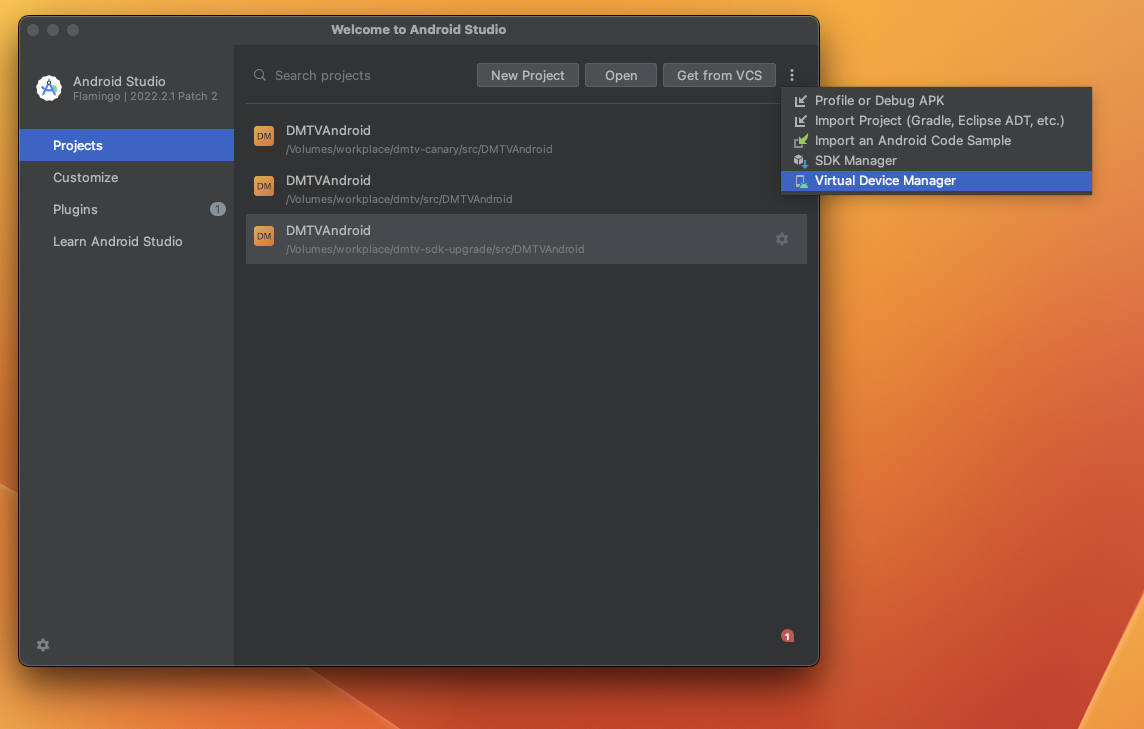
With the
Device Managerscreen open, clickCreate DeviceIn the new
Virtual Device Configurationscreen, selectTVas the category and select Android TV (resolution does not matter)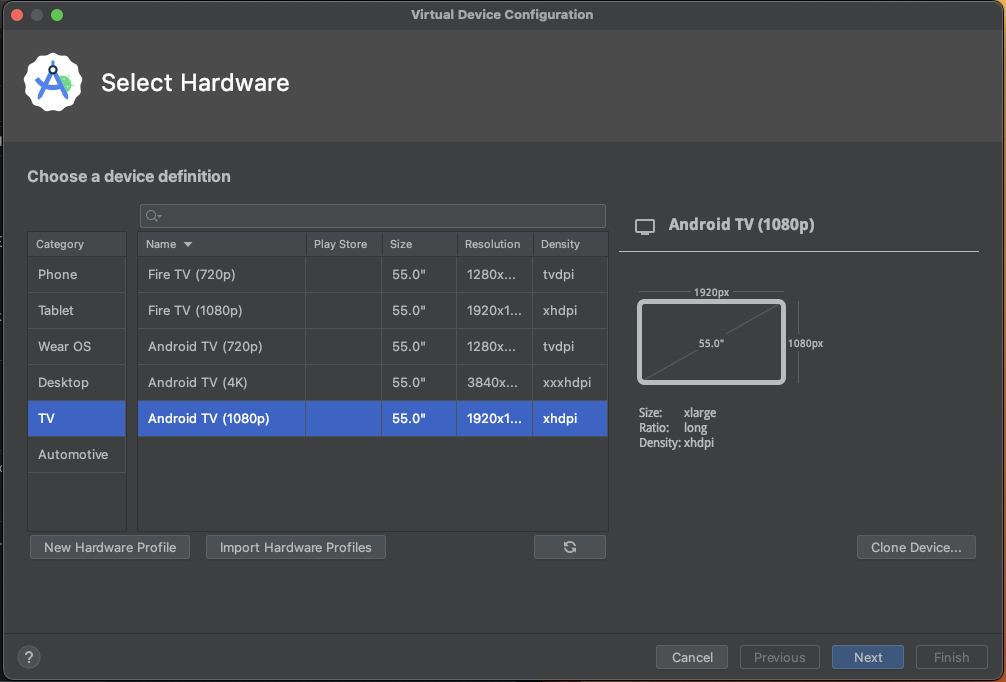
When it asks for the
System Image, selectTiramisa(APK 33) Android TV (You might be able to use Google TV, but we usually use Android TV)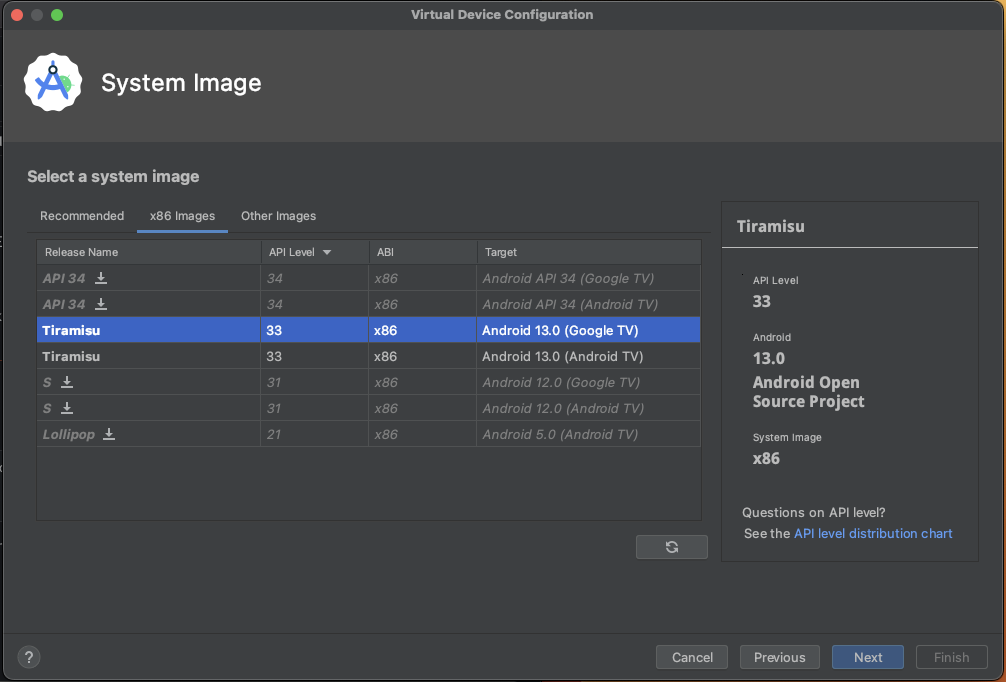
Once that is installed, you should be able to see it in the
Device Manager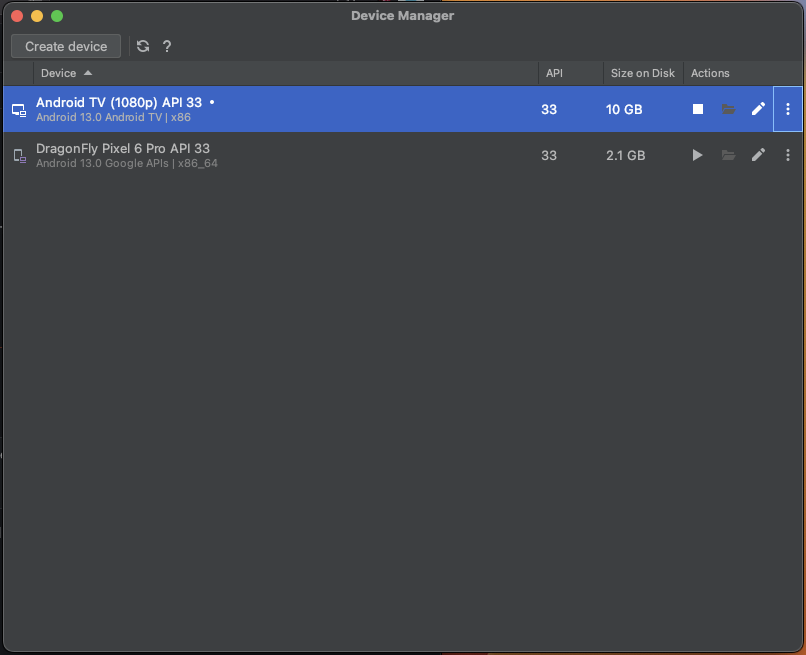
Updates For react-native-tvos
For FireTV, we are using a separate package called react-native-tvos to give us features that are related to AndroidTV for React Native. Without react-native-tvos, a few things won’t work out of the box for FireTV.
Please note: This is temporary and will currently break the mobile build. In order to get the mobile build working again, just revert the TV-specific changes.
Update package.json in root directory
In the package.json on the root directory, make the following changes to bootstrap and dragonfly script command to get react-native-tvos building
"scripts": {
    `"bootstrap"``:`` ``"yarn compatibility && (yarn clean && yarn dragonfly:sync:firefly && YARN_IGNORE_SCRIPTS=false yarn)"``,
    "dragonfly": "yarn compatibility && (yarn dragonfly:start & yarn dragonfly:android)",`
    \\ ..
}
Update apps/Dragonfly/package.json
In the package.json on apps/Dragonfly, make the following changes to get react-native-tvos:
"dependencies": {
    `"react-native"``:`` ``"npm:react-native-tvos@0.71.11-0"``,
    "react-native-gradle-plugin": "^0.71.18",`
}
Edit postinstall
We also have to make a quick edit to postinstall and comment out the run npx pod-install command
This is the commit to reference if you want to see it in action.
Running the Greenfield App
To run the Greenfield app, make sure that the AndroidTV emulator is running and it is the only device available on adb devices:

After that, you can use the yarn dragonfly command (make sure you run yarn bootstrap first) and it should load the app using the AndroidTV emulator.
Once loaded, you can use the arrow keys to navigate or load the extended controls by clicking the ellipsis icon: