

On-Call Runbook
On-Call Runbook
This is a brief overview of what to do when on-call for the Firefly platform. Please update the document upon noticing any gaps!
Tier-1 Status
Firefly is a Tier-1 service.
Finding code to root cause
Check out the project README for mmore detailed information
metalfly_api: For user authentication and CloudAuth related logic. Check out the project README for more detailed information.amu_webapi: All baseline Firefly logic lives within this package, including TypeScript code for the lambda, and CloudFormation metadata in theserverless.ymlFireFlyCDK: The CDK for deploying resources on FF (Client permissions, IAM Auth, S3 resources, etc)Librariesfolder: Decorator code, such as caching and HTTP handling live in hereClientsfolder: Integrations with upstream services live here, where each service has its own package (but its responses are translated into GraphQL withinamu_webapi)
Validating GraphQL queries
To test out any queries or validate the current prod response, try out one of these
The GraphQL dev console: https://dashboard.music.amazon.dev/graphql
What to do for a Sev-2
Start by confirming the customer impact of the issue by checking 3 Grafana dashboards
Firefly Platform Dashboard. Specifically look at the panels for “Graphql Lambda Error count”, “Graphql Lambda Duration (Avg)”, and “Graphql Lambda Throttle count”. If you notice obvious increases, continue to the next step.
Clients Overview Dashboard. Specifically, scan through the metrics around Latencies and Error Rates for each client. If you notice obvious increases, continue to the next step.
Services Overview Dashboard. Specifically, scan through the metrics for Latencies and Error Rates for each service. If you notice obvious increases, continue to the next step.
If there is significant customer impact, then it’s time to notify the team, no matter what time of day it is. Start a chime instant meeting, and make a post on the #amazon-music-outage, #music-firefly-interest, and #music-devex-operations Slack channels linking to the Sev-2, and your meeting.
Roll back all changes made in the last 24 hours in Firefly. To rollback the changes please follow SOP for Recovery in amu_webapi and metalfly_api.
Monitor our dashboards for 15 minutes to see if the code rollback made a difference. If you see successful recovery, update your thread in the #amazon-music-outage, #music-firefly-interest, and #music-devex-operations channel, update the announcement in the ticket, and feel free to close your meeting.
If you still see no improvement, then the issue could be due to an infrastructure change. Regardless of the time of day, go to Amazon paging, and send a page to @alewehn, @fkhalee, @ryderst, @bgeck, or @senkan. Set the subject to the Sev-2 ticket link. Set the content to the chime meeting details.
While you wait for your team members to join, get Administrator access to the firefly-music-prod account. Given this is customer impacting, you can click “Show Emergency Actions”, select Sev-2, paste the Sev-2 UUID, and click “Console Access with MSO”.
Sev-2 samples
INTERNAL_SERVER_ERROR on playlist query Ticket sample
There is no notable increase observed on the Grafana dashboard.
Contact the individual who submitted the ticket to ascertain the impact on customers, including any effects on distinct customer counts caused by the issue.
Ask for the playlist ID, region, and the timestamp when the issue began to arise.
Access the CloudWatch logs and select the specified log groups.
/aws/lambda/MusicFirefly-prod-graphqland/aws/lambda/MusicFirefly-prod-graphqlCoreRun the query
fields @timestamp, @message
| filter @message like /1c2e497f-6974-45c7-84a1-6b6b49696b01/ # playlistId
| sort @timestamp desc
| limit 1000
Obtain associated
RequestIdshow in above query resultRun another query to check the response from MuPS to get the ASIN of removed track
fields @timestamp, @message
| filter @message like /4abccf95-3af9-4210-ad60-2640e2db21cb/ # RequestId
| sort @timestamp desc
| limit 1000
Check Sable reponse using the track ASIN to confirm if track is removed from AMC.
If track is removed in AMC, there is no action item on FF. 3P team has option to follow up with AMC to restore deleted track.
[ALARM] [us-west-2] MetalFly-ECS-CPUUtilization-SEV2-prod-us-west-2 Ticket sample
Alarms automatically cut tickets when triggered and are internal, so diagnosis comes first.
Check the Grafana dashboard first to get a high-level overview of what is causing the alarm. In this case, check the MetalFly -> Health dashboard. The following metrics are particularly useful:
ECS Metrics: MemoryUtilization (Average)
ECS Metrics: CPUUtilization (Average)
ALB Metrics: RequestCount (TPS)
ALB Metrics: TargetResponseTime (P90)
Access the CloudWatch logs and select the relevant log groups. Don’t forget to switch to the region the alarm triggered in (in this case, switch to us-west-2). In this case, select log group
/ecs/Metalfly/Api/MetalflyService.Run the following query to filter for operations with the highest traffic:
fields @timestamp, @message, @logStream, @log
| filter @message like 'x-apollo-operation-name'
| parse @message '"x-apollo-operation-name": "*"' as operations
| stats count (*) as total by operations, bin (5min)
| sort by total desc
| limit 100
Review the list of operations and take note of the first operation listed if its total is significantly higher than the others, or the first few operations if they have similar totals which are significantly higher than the others.
For each operation, run the following query (with OPERATION_NAME replaced with the operation you want to analyze) to determine the traffic pattern of the given operation:
fields @timestamp, @message, @logStream, @log
| filter @message like 'x-apollo-operation-name'
| filter `payload.headers.x-apollo-operation-name` = 'OPERATION_NAME'
| stats count (*) as total by bin (5min)
| sort by total desc
| limit 100
Using the Visualization tool, note/screenshot any sudden increases in operation total and verify that their occurrences match with the alarm time.
If the operation total is a spike, the fleet successfully scaled up to resolve the spike without manual intervention. Note that scaling takes around 2 minutes to take effect, assuming traffic did not increase again. If the operation total has not decreased significantly, manual intervention will be required:
Potential cause is a traffic (operation) surge: the fleet should automatically scale up and CPU utilization should decrease when scaling is complete, but if the surge continues, reach out to the team that owns the source of traffic (remember to cite the Grafana and CloudWatch logs for reference)
Potential cause is a deployment: there might be momentary CPU utilization spikes during a deployment due to initialization of clients and other data that are kept at the runtime level, but once all that is done, CPU utilization should stabilize; if CPU utilization has not stabilized after 5 minutes (2 minutes for the scaling policy to be evaluated, 2-3 minutes for new hosts to be provisionsed), execute a rollback
Update the ticket correspondence accordingly. If no manual intervention is required, close the ticket and investigate the root cause of the spike separately.
How to get CLI credentials for Firefly Prod
Operations such as reverting a change in production require you have administrator credentials for your AWS CLI. There are two ways to access these: “2 person review” and “Break glass”
2 Person Review (2PR)
Start by running the following command. This attempts to fetch prod credentials from IIBS (a midway service):
curl --location-trusted -c ~/.midway/cookie -b ~/.midway/cookie -X POST -H "Accept: application/json" -d '{"awsAccountId":"305080342773", "awsPartition": "aws",
"duration":3600}' https://iibs-midway.corp.amazon.com/GetSecurityTokenByAccount
This will almost certainly fail with an output like so:
{"message":"Requester is not authorized and needs to provide additional justification(s) for MPA enabled account: 305080342773 Please submit a review at https://auth.prod.web.shoehorn.security.aws.dev/auth?token=eyJ2ZXJzaW9uSWQiOjEsInVzZXJJZCI6ImJnZWNrIiwic3lzdGVtSWQiOiIzOTgzNDE5NzEzMTEiLCJyZWdpb24iOiJ1cy13ZXN0LTIiLCJ3b3JrZmxvd0lkIjoiNDRmMTg0YWQtOTFmMS00YTYxLWFlYTItMTIzNzIyZmExOTJkIiwiaGFzaGVkU2NvcGVzIjoiN2JjMjkyOTNiZTE1YWY3OGY2NWNmYmIwOWQxOGNlMWNmNjNjNGQ3NWQxYWZkODM3MmQ5ZjQ4MTM4MzY5M2RiNyIsIndvcmtmbG93U2FtcGxpbmdTaXplIjoxMDAsInN1YldvcmtmbG93TnVtYmVyIjoxfQ%3D%3D and have it approved."}
Navigate to the shoehorn link in the response. It will bring you to a form titled “Provide Contingent Authorization”. Fill out the Description, and click “Create 2-PR”
Copy the generated link and share this with an engineer on your team. Do NOT close the page.
Once your teammate approves the request, return to the page and click “Submit Contingent Authorization”
You should see a new page saying that your request was successful.
Return to your terminal and rerun the command from Step 1 above. You should now receive credentials in the command output. It will look something like so:
{"accessKeyId":"MOCK1234567890","assumedRoleId":"ASIAUOFAKE1234:user@MIDWAY.AMAZON.COM","expiration":1710458842000,"roleARN":"arn:aws:sts::305080342773:assumed-role/IibsAdminAccess-DO-NOT-DELETE/user@MIDWAY.AMAZON.COM","secretAccessKey":"MockSecretAccessKey","sessionToken":"MockSessionToken1234567890=="}
Now we are going to configure your
firefly-prodcredentials profile. Start be running this command:aws configure --profile firefly-prod. You will see a series of input prompts.For
AWS Access Key ID, put the access key output from Step 7. In my case, this will beMOCK1234567890For
AWS Secret Access Key, put the secret access key from the output from Step 7. In my case, this will beMockSecretAccessKeyFor
Default region nameuseus-east-1For
Default output formatusejsonConfirm you have set your credentials correctly by running
aws configure list --profile firefly-prod. You should successfully see a command output like so:
      Name                    Value             Type    Location
      ----                    -----             ----    --------
   profile             firefly-prod           manual    --profile
access_key     ****************7890 shared-credentials-file
secret_key     ****************sKey shared-credentials-file
    region                us-east-1      config-file    ~/.aws/config
Break Glass
If there is a high-severity issue occurring, and you don’t have another engineer online to complete a 2PR, you can leverage the “Break Glass” option. Breaking glass cuts a Sev-2 ticket to your team, so only use it in emergency situations.
If you have a Sev-2, start by copying your ticket UUID. This can be challenging to find. You can see it in small text at the top of the Overview tab. For example, for this ticket, you can find the IDs in the Overview tab are
IDs: V1296306612 | 2687bc2c-5eca-400a-9431-4bbb2b785e7b. Copy the UUID. This is the second ID. In my case it will be2687bc2c-5eca-400a-9431-4bbb2b785e7b.Once your have your ticket UUID, run the following command:
curl --location-trusted -c ~/.midway/cookie -b ~/.midway/cookie -X POST -H "Accept: application/json" -d '{"awsAccountId":"305080342773", "awsPartition": "aws", "breakGlass": "true", "sev2Id":"2687bc2c-5eca-400a-9431-4bbb2b785e7b",
"duration":1800}' https://iibs-midway.corp.amazon.com/GetSecurityTokenByAccount
This will print out your temporary Administrator credentials. Follow steps 7 to 13 from the 2PR section above to add a new AWS credentials config.
SOP for Recovery in amu_webapi
We have a fast rollback mechanism available via a single-click deployment from the pipeline.The steps for single-click deployment Rollback in MF Core However, if a rollback is not sufficient and a code change is required, follow these steps:
1. Prepare the Merge Request (MR)
Draft the necessary MR with your code change.
2. Pause the Merge Train
Go to Pipeline Schedules.
If you’re not the current owner of the Scheduled MergeTrain Pipeline, click Take ownership.
Then click Edit scheduled pipeline, uncheck the Activated option, and Save changes to temporarily block the merge train.
3. Approval and Merge
Normally, multiple approvals are required for the MR to be automatically merged via the merge train.
For faster resolution of customer impact, obtain at least one approval from the FF on-call engineer.
Wait until the integration tests pass, then manually merge the MR.
4. Cancel the Corresponding Main Pipeline
After merging to the mainline, locate the corresponding pipeline on the main branch and cancel it.
5. Trigger Release Deployment
Navigate again to the Pipeline Schedules and click Run scheduled pipeline under the Scheduled Release Tag Prod Deployment section.
This pipeline:
Builds the artifact
Deploys to the beta stack
Runs integration tests
Creates a new Chore or release tag
Afterward, the production deployment pipeline will be automatically triggered.
6. Re-enable the Merge Train
Once customer impact has been resolved, re-activate the merge train by returning to the same scheduled pipeline and checking the Activated box again.
SOP for Recovery in metalfly_api
We have a fast rollback mechanism available via a single-click deployment from the pipeline.The steps for single-click deployment Rollback in MF API. However, if a rollback is not sufficient and a code change is required, follow these steps:
1. Prepare the Merge Request (MR)
Draft the necessary MR with your code change.
2. Approval and Merge
Normally, multiple approvals are required for the MR to be automatically merged via the merge train.
For faster resolution of customer impact, obtain at least one approval from the FF on-call engineer.
Wait until the integration tests pass, then manually merge the MR.
3. Release Deployment
Once MR is merged to main branch, another main branch pipeline will automatially trigger to create new chore release.
Prod deployment pipeline will automatically trigger after release tag creation.
Useful queries for gathering data from logs
For querying metrics, take a look at the Timestream DB Cookbook
For querying logs, take a look at the CloudWatch Insights Coobook
Giving other teams permissions
We have view-only access to FireFly AWS production account, that is based Manager approved team’s. https://permissions.amazon.com/a/team/firefly-aws-view-access, pls request the concerned engineer to request their Manager to add them.
Teams requesting access to prod logs (readonly): https://bindles.amazon.com/resource/amzn1.bindle.resource.qs7glqio4anoeivzbjoa
Teams requesting access to IAM for Firefly development: https://bindles.amazon.com/resource/amzn1.bindle.resource.jcjexcu7b4l6audn7twa
They can then log into AWS console using
FireFly-Dev-IamAccessrole, then create an IAM user w/ groupSonic-Contributorand store the credentialsThe credentials from above step should be stored in their local
~/.aws/credentialsand used to deploy the dev stack using serverless (viayarn deployAll)
People requesting visibility into the Gitlab repo as a whole should request access to the permissions group “aws-gitlab-access-music” (for read-only access they shouldn’t need permissions specific to our code base)
Once they do this, they should be able to request access to the code base via the top-level Firefly folder
Merge Request Protocol
Each Merge Request (MR) is subject to a review process scheduled for every Tuesday and Thursday, with potential outcomes varying.
1. Approval
An MR is marked with the label “Merge Train - Approved.”
It should be promptly merged following the review session if there is no SEV-2 and merging timeframe falls within Monday to Thursday before 6pm.
2. Conditional Approval
An MR is marked with the label “Merge Train - Conditional,” indicating conditions for approval.
Reviewers are required to provide comments on the MR specifying the conditions.
Upon addressing all comments, on-call will assess the conditional reasons and decide whether to proceed with merging or leave the MR as it is.
Prior to merging MR, please confirm that there are no active SEV-2 and merging timeframe falls within Monday to Thursday before 6pm.
3. Pending office hour discussion or Refactor
Redirect contributor to office hour sign up schedule.
Grafana SAML Certificate Rotation
When you receive a ticket for Grafana SAML Certificate rotation, follow these steps:
Navigate to SAML Dashboard
Access the Grafana Certificate
Rotate the certificate:
Click
Actions>Rotate CertificateSelect latest version (e.g.
202411)Download metadata format certificate
Open the Grafana Workspace
Update SAML configuration:
Scroll to bottom and click
SAML ConfigurationSelect
Upload or copy/pasteUpload the metadata file in “Import the metadata” section
Save the configuration
Complete certificate rotation:
Return to SAML dashboard
Check “I have downloaded and imported the selected certificate”
Click
Apply
Verify the setup:
Visit Grafana Workspace
Sign out and sign back in
Verify Federate Login redirect works
Note: If you see “failed to determine the state of the SSO redirect” popup, review and correct the configuration.
Note: For Rollback generally follow MF Core first then MF API but may depend on the specific changes we are rolling back.
Rollback in MF Core & MF API
1. Prerequisites
Identify Target Tag
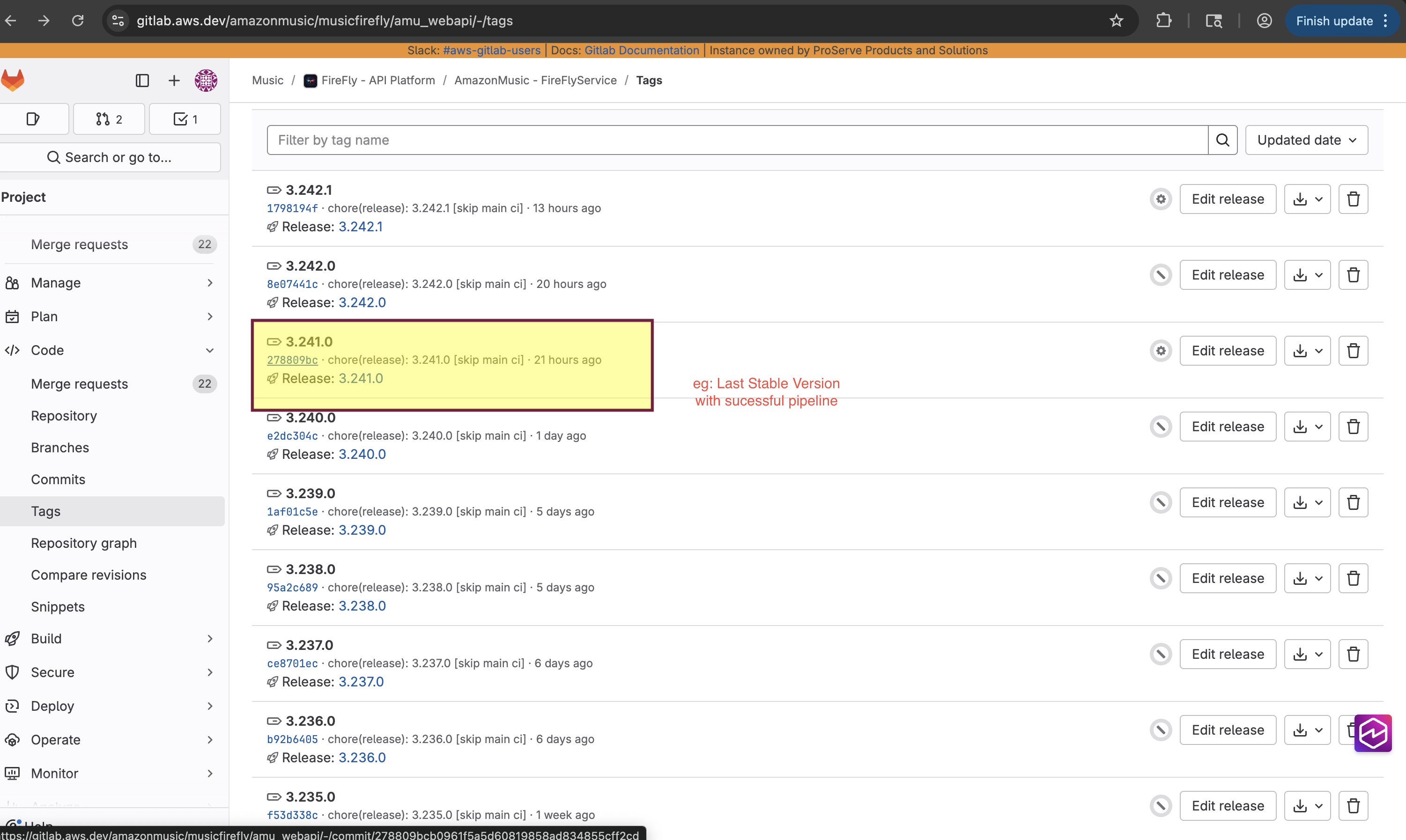
The rollback target should be the previous stable tag — typically the last version deployed before the current problematic release.
Example: If version 3.242.1 was deployed successfully but caused errors in production, rollback to 3.240. the most recent version confirmed stable before the issue appeared.
Review the tags list and note the stable version you want to roll back to (e.g., 3.240.0).
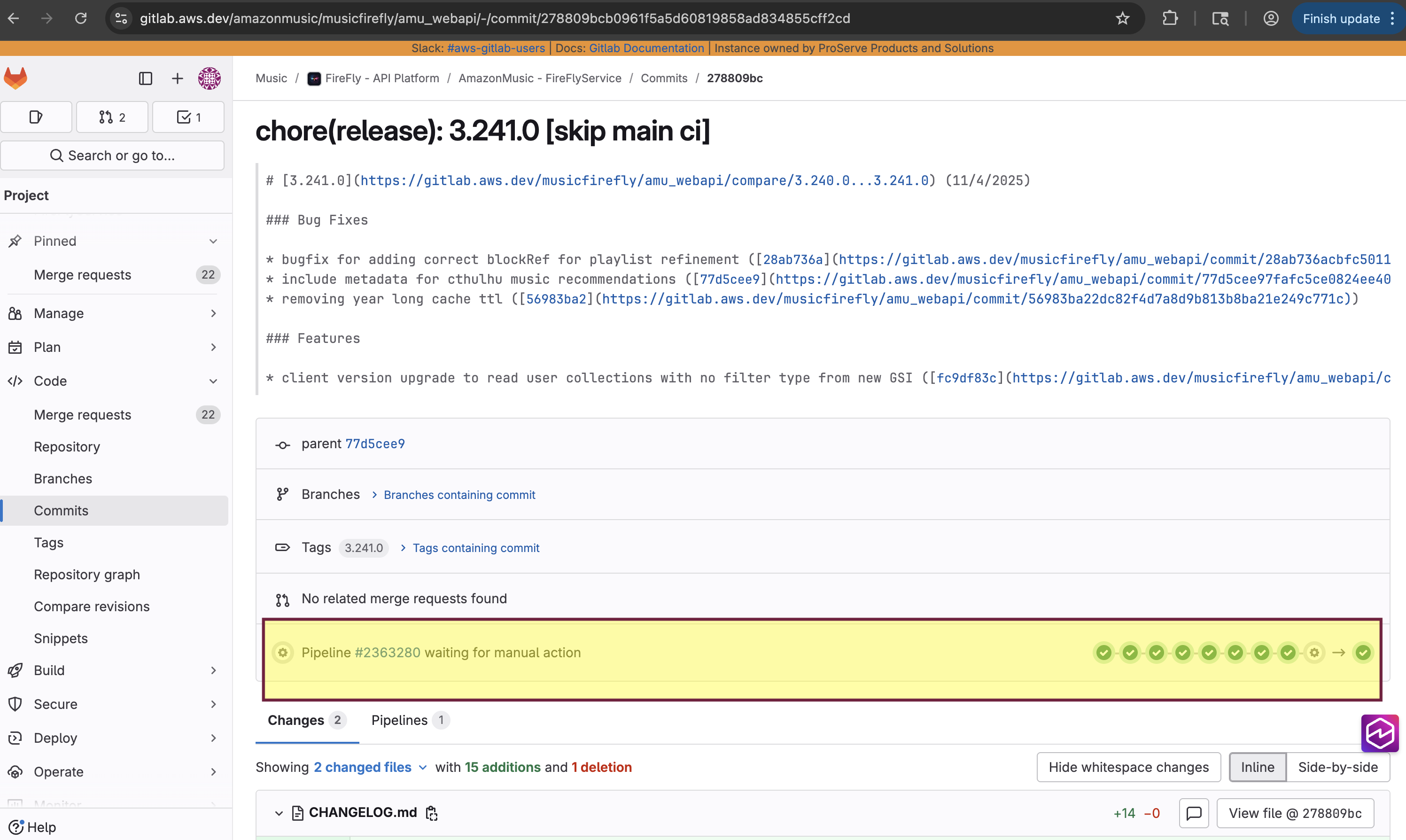
Confirm that a pipeline exists for that tag.
2. Rollback Steps
Identify the Tag.
Go to Gitlab Project (https://gitlab.aws.dev/amazonmusic/musicfirefly/amu_webapi/-/tags)
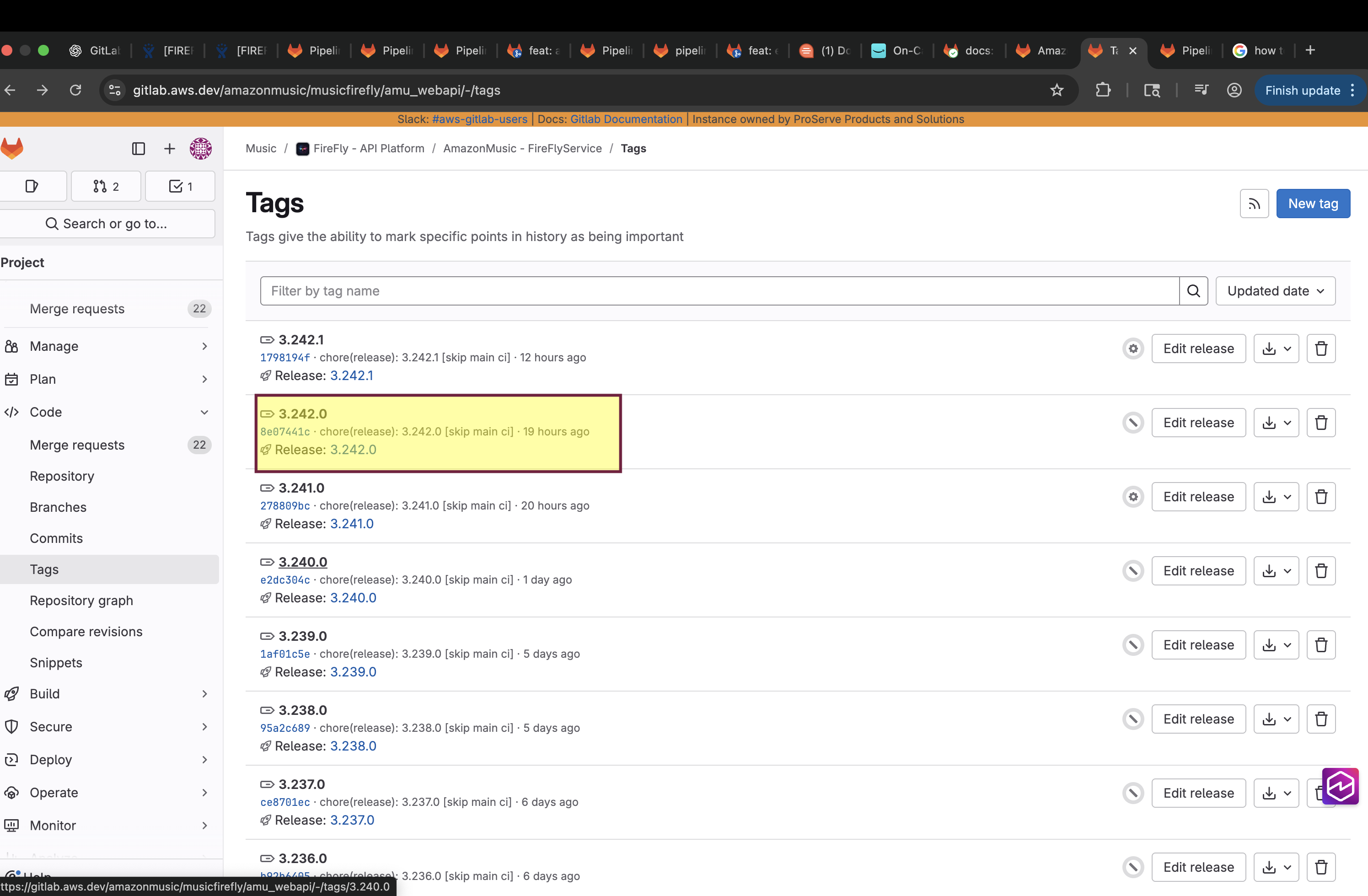
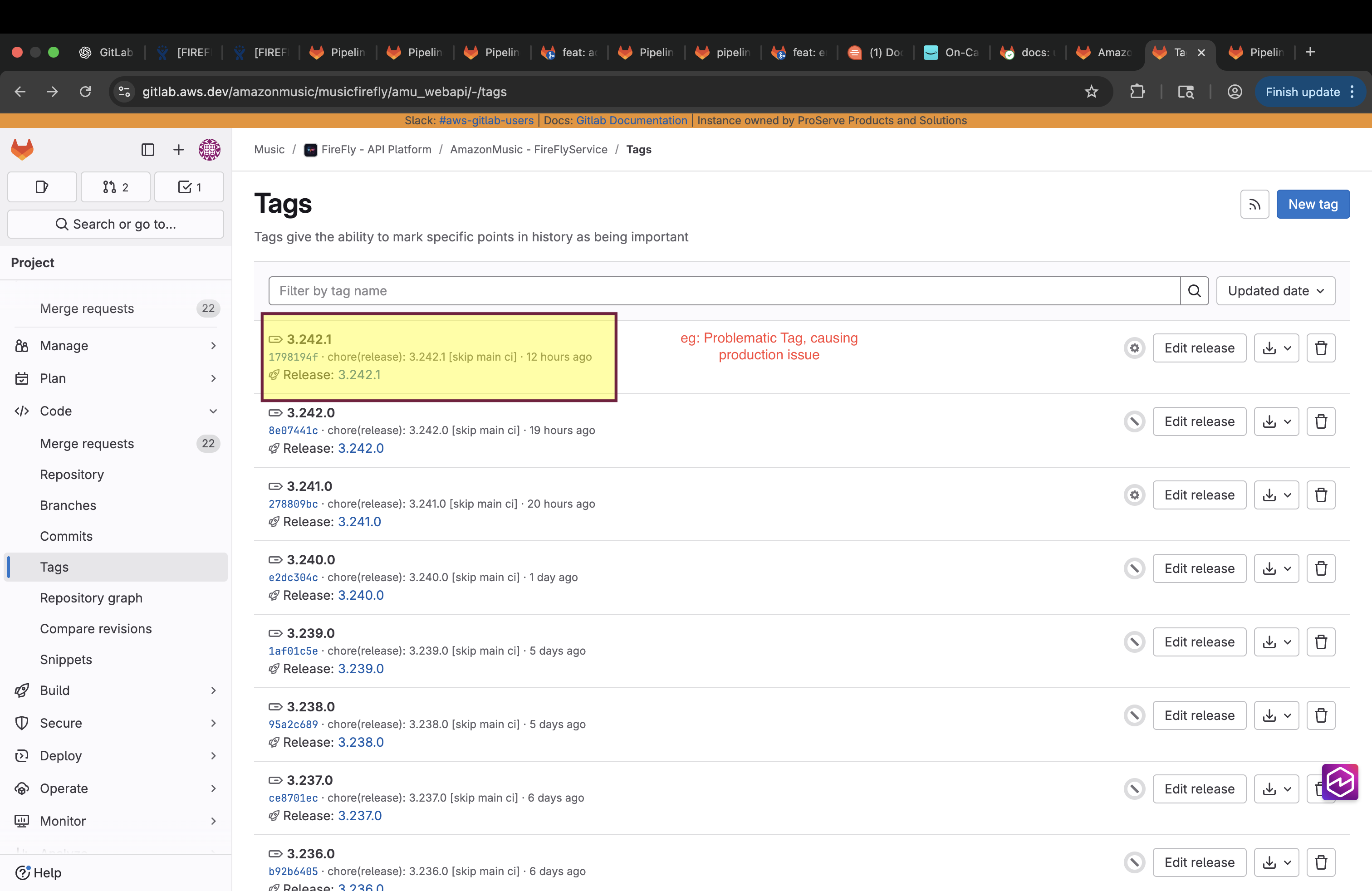
Review the tags list and note the stable version you want to roll back to (eg: the last stable version before the problematic version 3.242.1<->3.241.0)
Confirm that pipeline exist for that tag
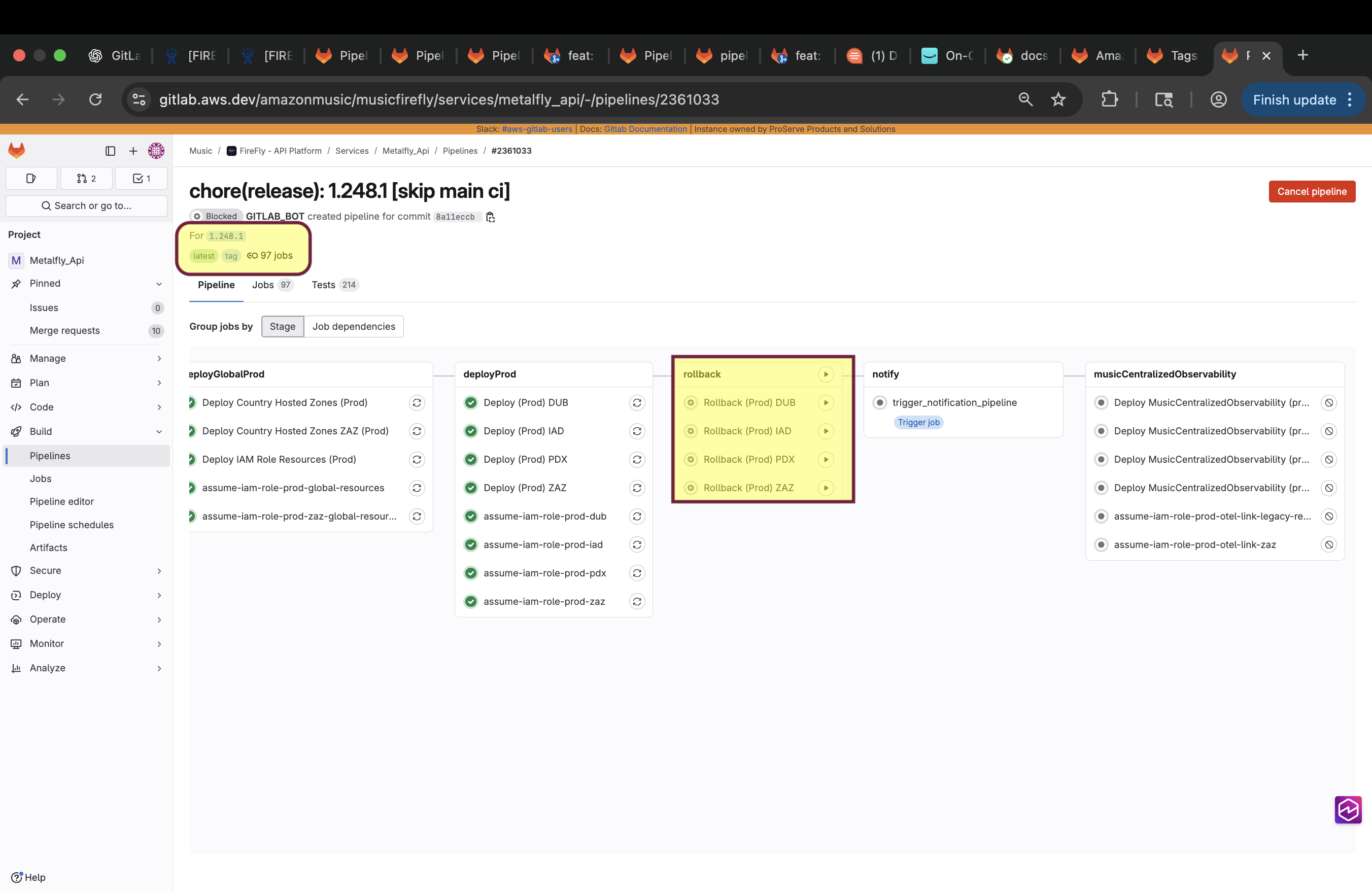
Navigate to target tag pipeline
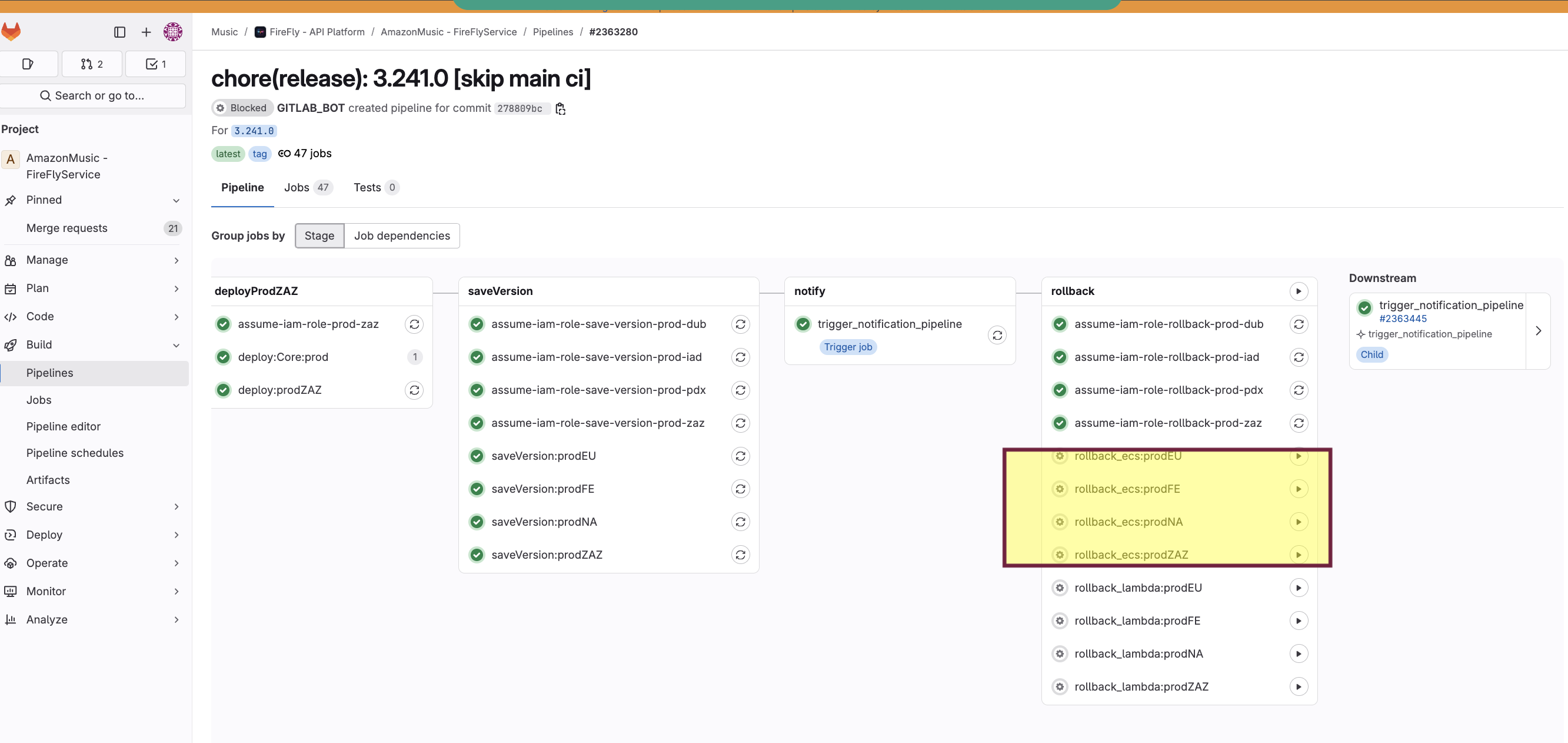
Scroll to the Rollback stage.You will see multiple rollback jobs by region:
rollback_ecs:prodNA (us-east-1)
rollback_ecs:prodFE (us-west-2)
rollback_ecs:prodEU (eu-west-1)
rollback_ecs:prodZAZ (eu-south-2)
5.Click rollback play button next to the region you want to rollback
3.Timeline
• Per Region: 8-10 minutes • All Regions: 15-20 minutes (if done sequentially)
The rollback procedure for ME API is identical as MF Core.Follow the same steps for rollback
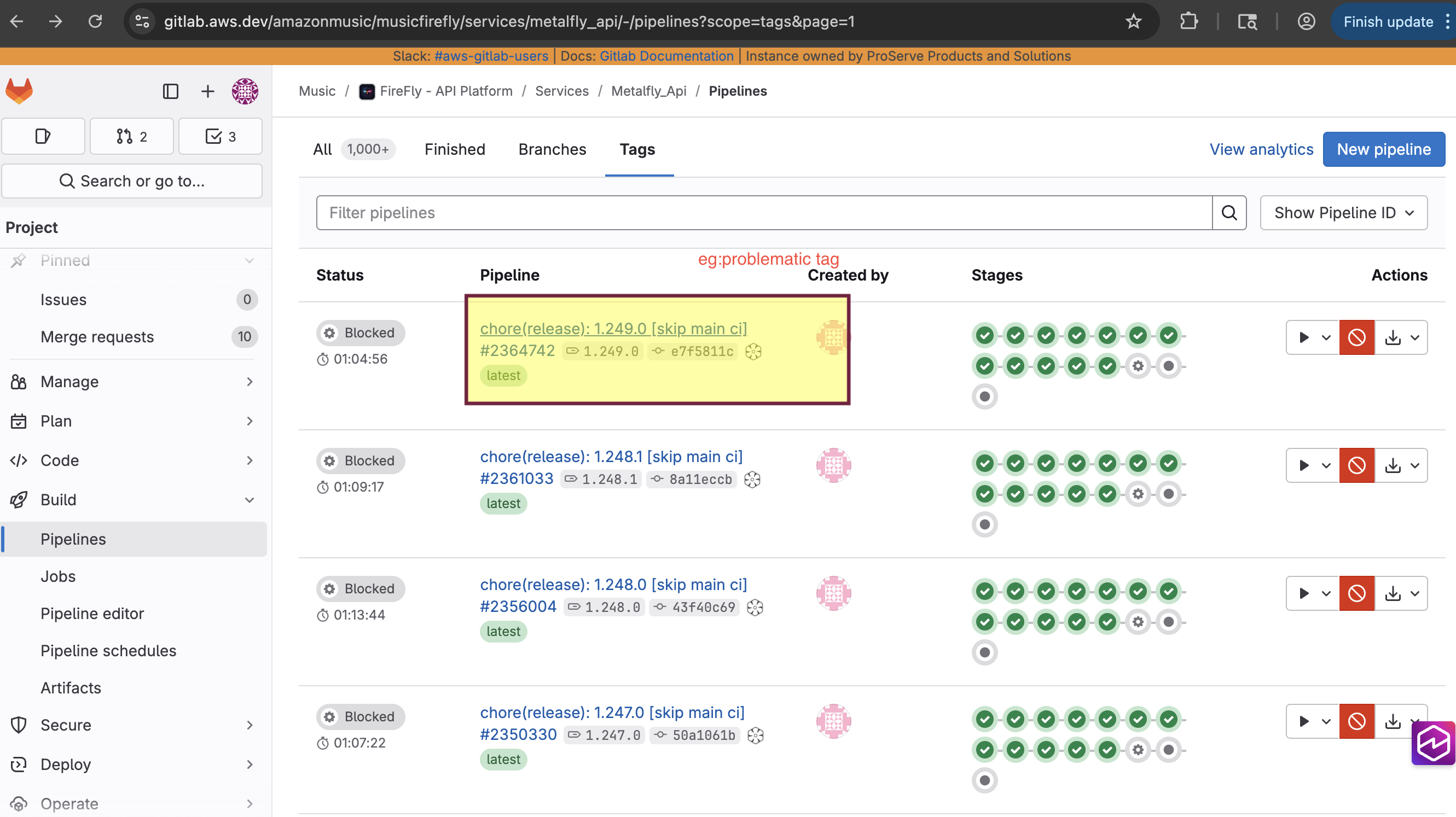
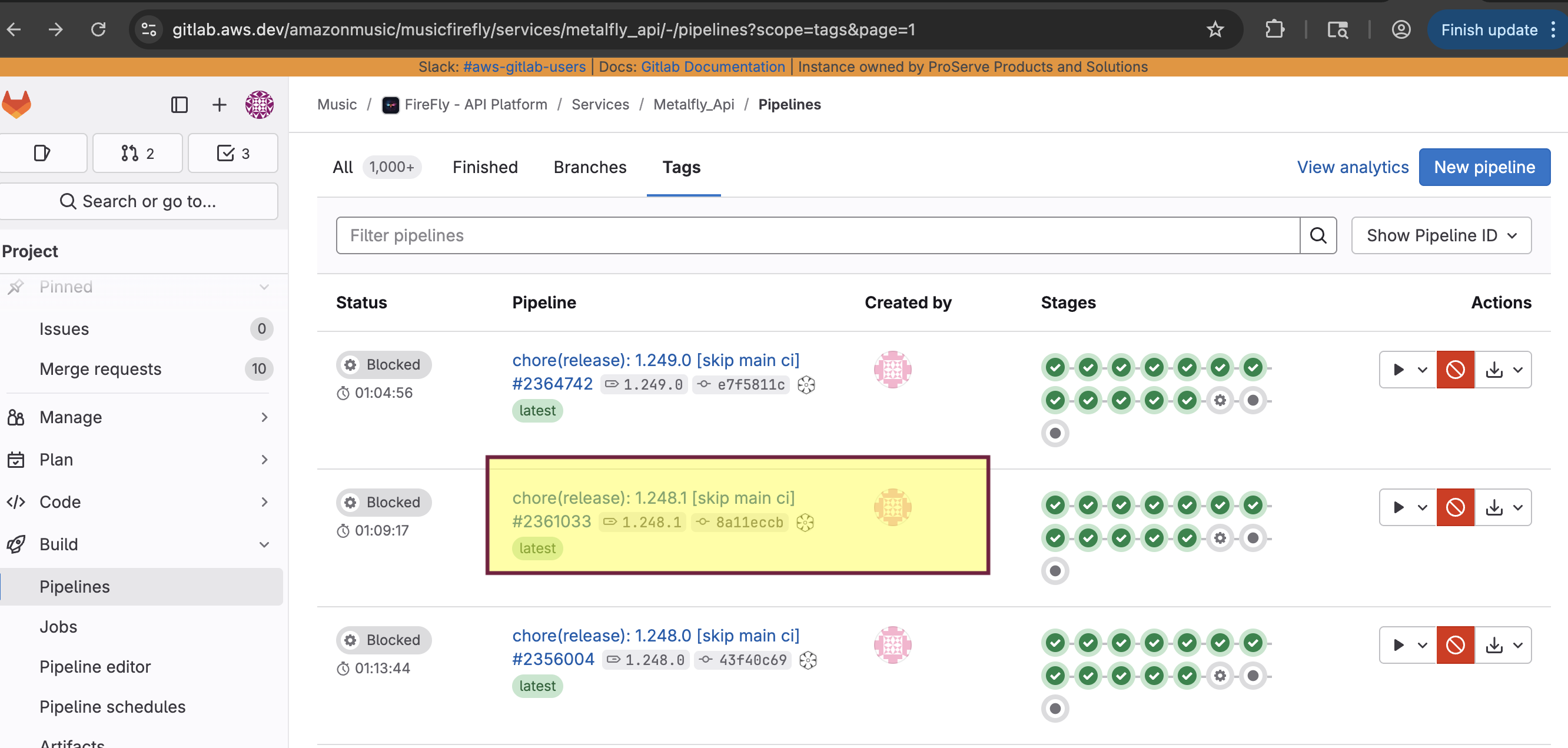
Go to Gitlab Project (https://gitlab.aws.dev/amazonmusic/musicfirefly/services/metalfly_api/-/pipelines?scope=tags&page=1)
Screeshots for MF API rollback for reference